DefaultController
To start the default controller do
roslaunch talos_controller_configuration default_controllers.launch
roslaunch talos_controller_configuration_gazebo default_controllers.launch
roslaunch talos_controller_configuration default_controllers.launch
roslaunch kangaroo_controller_configuration default_controllers.launch
Start up robot first
Make sure to read Handling & Safety and follow the instructions to turn on the robot. Once the robot is on and initialized you can start the default controller.
This will activate the walking controller and the upper body position controllers. In this state, the robot is ready to walk, execute motions involving only the upper body (via play_motion), and use MoveIt among others.
Walking Controller
There are many different ways to send commands to the walking controller:
- Publishing a specific velocity to the topic
/walking_controller/cmd_vel - Sending a goal to the ROS action
/walking_controller/footsteps_execution - Using the ROS service
/walking_controller/walk_stepsto generate a set of forward steps - Using the ROS service
/walking_controller/do_stepto generate a single footstep with respect to a stance leg
Publishing a specific velocity (works well)
Publishing a specific velocity to the topic /walking_controller/cmd_vel will result in continous movement with this velocity. If it is published only once it will only do one step into the direction. If it is published continously it will move with constant velocity in this direction until publishing stops.
Here is an example command to publish a constant velocity in x direction once with the flag --once
rostopic pub --once /walking_controller/cmd_vel geometry_msgs/Twist '{linear: {x: 0.1, y: 0.0, z: 0.0}, angular: {x: 0.0,y: 0.0,z: 0.0}}'
or continously by publishing with a rate flag e.g. -r 10
rostopic pub /walking_controller/cmd_vel geometry_msgs/Twist "{linear: {x: 0.1, y: 0.0, z: 0.0}, angular: {x: 0.0, y: 0.0, z: 0.0}}" -r 10
Sending a goal to a ROS action (throws error)
The robot can be moved by sending a goal to the action server /walking_controller/footsteps_execution.
It expects a goal of type humanoid_nav_msgs/ExecFootstepsActionGoal.
To see the message definition:
roscd humanoid_nav_msgs
cd msg
cat ExecFootstepsActionGoal.msg
cat ExecFootstepsGoal.msg
cat StepTarget.msg
or do
rosmsg show humanoid_nav_msgs/ExecFootstepsActionGoal
rossrv show humanoid_nav_msgs/ExecFootstepsAction
The goal exepcts the parameter footsteps which is a list of StepTarget.
It can be called with
rostopic pub --once /walking_controller/footsteps_execution/goal humanoid_nav_msgs/ExecFootstepsActionGoal "{
        header: {
            seq: 0,
            stamp: {secs: 0, nsecs: 0},
            frame_id: ''
        },
        goal_id: {
            stamp: {secs: 0, nsecs: 0},
            id: ''
        },
        goal: {
            footsteps: [
                    {
                        pose: {x: 0.05, y: 0.0, theta: 0.0},
                        leg: 0
                    }
            ],
            feedback_frequency: 0.0
        }
}"
This example sends a single footstep command to the action server, moving the right leg (leg: 0) forward by 0.05 meters.
Trying this method in simulation throw an error -> COLLISION DETECTED
Using a ROS service to generate a set of steps (works well)
The ROS service /walking_controller/walk_steps can be used to generate a set of forward steps.
The service expects the following:
rosservice call /walking_controller/walk_steps nsteps_value step_length_value step_time_value
e.g. it can be called with
rosservice call /walking_controller/walk_steps 2 0.05 5
Using a ROS service to generate a single footstep (throws error)
The ROS service /walking_controller/do_step can be used to generate a single forward step.
The service expects one argument stepof type humanoid_nav_msgs/StepTarget:
rosservice call /walking_controller/do_step step
To see the service and message definition:
roscd humanoid_nav_msgs
cd srv
cat StepTargetService.srv
cd ..
cd msg
cat StepTarget.msg
It can be called with
rosservice call /walking_controller/do_step "step: {pose: {x: 0.1, y: 0.0, theta: 0.0}, leg: 0}"
where pose is the relative pose to the last leg position given with direction x and y and orientation theta. The parameter leg defines which leg to use 0=rightand 1=left.
Trying this method in simulation throw an error -> COLLISION DETECTED
Upper Body Position controllers
Play Motion
Once the default controllers are started, the user is able to execute predefined motions with the upperbody:
-
By sending a goal to a ROS action /play_motion
-
By executing them using a node
Sending a goal to the ROS action /play_motion
The action /play_motion expects a goal of type play_motion_msgs/PlayMotionActionGoal.
To see further info
rosmsg show play_motion_msgs/PlayMotionActionGoal
To execute the wave motion by sending a goal
    rostopic pub --once /play_motion/goal play_motion_msgs/PlayMotionActionGoal "{
    header: {seq: 0, stamp: {secs: 0, nsecs: 0}, frame_id: ''},
    goal_id: {stamp: {secs: 0, nsecs: 0}, id: ''},
    goal: {motion_name: 'wave', skip_planning: true, priority: 5}
    }"
import rospy
from play_motion_msgs.msg import PlayMotionActionGoal
from actionlib_msgs.msg import GoalID
from std_msgs.msg import Header

def publish_wave_motion():
    # Initialize the ROS node
    rospy.init_node('send_wave_motion_goal')

    # Create the publisher
    pub = rospy.Publisher('/play_motion/goal', PlayMotionActionGoal, queue_size=10)

    # Wait until publisher is connected to subscribers
    rospy.sleep(1)

    # Construct the message
    goal_msg = PlayMotionActionGoal()
    goal_msg.header = Header()
    goal_msg.goal_id = GoalID()

    goal_msg.goal.motion_name = 'wave'
    goal_msg.goal.skip_planning = True
    goal_msg.goal.priority = 5

    # Publish the message once
    pub.publish(goal_msg)
    rospy.loginfo("Published wave motion goal.")

if __name__ == '__main__':
    try:
            publish_wave_motion()
    except rospy.ROSInterruptException:
            pass
Execute play_motion via the run_motion node
Simply run the provided node with the specified motion
rosrun play_motion run_motion MOTION_NAME
For example to execute the wave motion
rosrun play_motion run_motion wave
All motions are stored in the param server under /play_motion/motions/. New motions can be added by loading them in this specific namespace. A motion consists of the used joints and a set of waypoints in Joint Trajectory space.
To list all available motions
rosparam list | grep play_motion/motions
or to print out detailed information
rosparam get /play_motion/motions/
Joint trajectory motion ROS API
Talos has multiple joint_trajectory_controllers from the respective ROS package. These controllers take a ROS message of type trajectory_msgs/JointTrajectory which specifies joint positions, velocities, accelerations, or efforts for each trajectory point and must follow the same order as the listed joint names.
The controllers receive trajectory goals through their respective ROS topics and action interfaces, allowing them to execute the commanded motions.
Which controllers are available?
You can do
rosservice call /controller_manager/list_controllers
or to see all loaded controllers (not necessarily running)
rosservice call /controller_manager/list_controller_types
or echo topics
rostopic list | grep controller
Source: pal docs
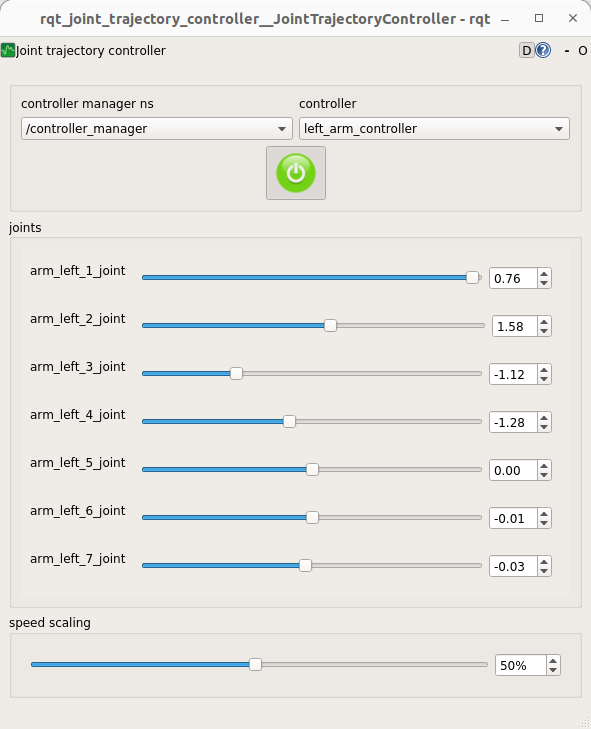
Joint trajectory motions with rqt GUI
The joint can be moved individually using a GUI implemented on the rqt framework. In case of running this example with the real robot, i.e. not in a simulation, open the terminal in a development computer and first run:
    export ROS_MASTER_URI=http://talos-7c:11311

    export ROS_IP= <your.dev_pc.ip.adress>
Make sure to use your robot’s serial number when exporting the ROS_MASTER_URI variable and to set your development computer’s IP when exporting ROS_IP.
The GUI is launched as follows:
rosrun rqt_joint_trajectory_controller rqt_joint_trajectory_controller
Danger
When using it be careful as self-collisions are not checked, and it is possible to move a joint and cause a collision between the arm and the body of the robot.
Source: pal docs